Automating Project Management with Make.com: Email to Trello and Google Sheets
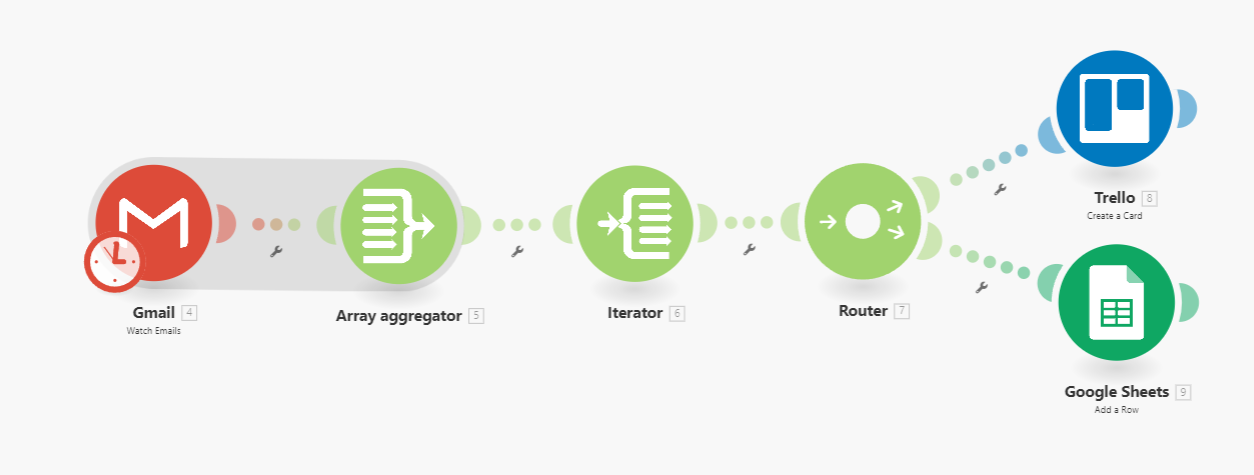
In today’s fast-paced world, productivity tools are essential in helping us stay organized. Let's set up an automated workflow using Make.com, integrating Gmail, Trello, and Google Sheets. This automation will monitor for new project emails, create Trello cards, and log details into Google Sheets effortlessly.
The Scenario
We need to achieve the following:
- Check our Gmail inbox every 15 minutes for new emails with "New Project" in the subject.
- For each of these emails, create a new card in Trello with relevant details.
- Add a new row in a Google Sheet with the email's details.
Now, let’s walk through how we can set up this automation in Make.com.
Setting Up the Scheduled Trigger
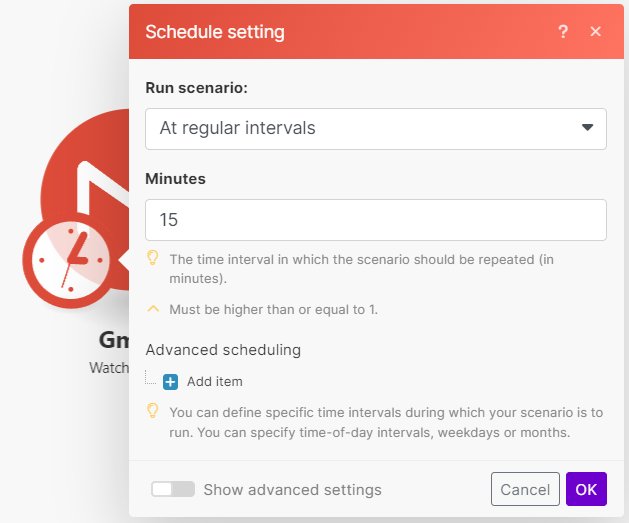
Our first task is to schedule the scenario to run at 15-minute intervals:
- Creating the Scenario: Begin by creating a new scenario in Make.com. This starts by selecting a blank canvas where we can drag and drop our modules.
- Setting the Schedule: We'll add a schedule module to run our scenario every 15 minutes. This way, it continuously checks for new emails and processes them.
Watching for Specific Emails in Gmail
Next, we need to configure Make.com to monitor our Gmail inbox:
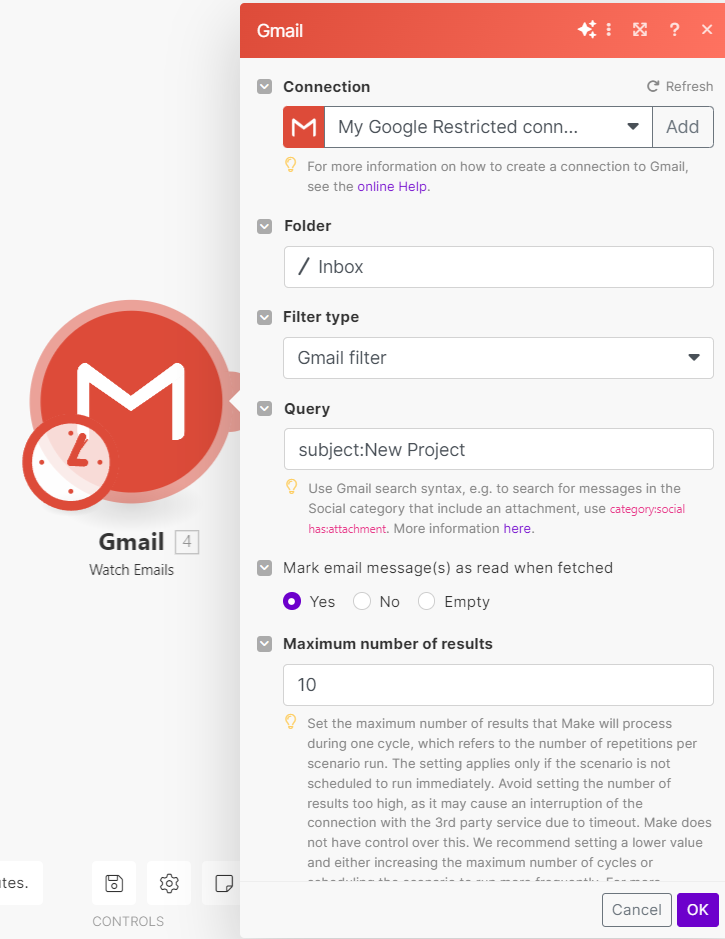
- Adding the Gmail Module: Select the
Watch Emailsmodule. In the configuration:- Choose your Google account and allow permissions.
- Set the
Search TypetoGmail Filter. - Specify the
FolderasINBOX. - Use the query
subject:New Projectto filter out the relevant emails. - Ensure that the emails are marked as read after being fetched.
Aggregating the Emails
To handle multiple emails, we need to aggregate them:
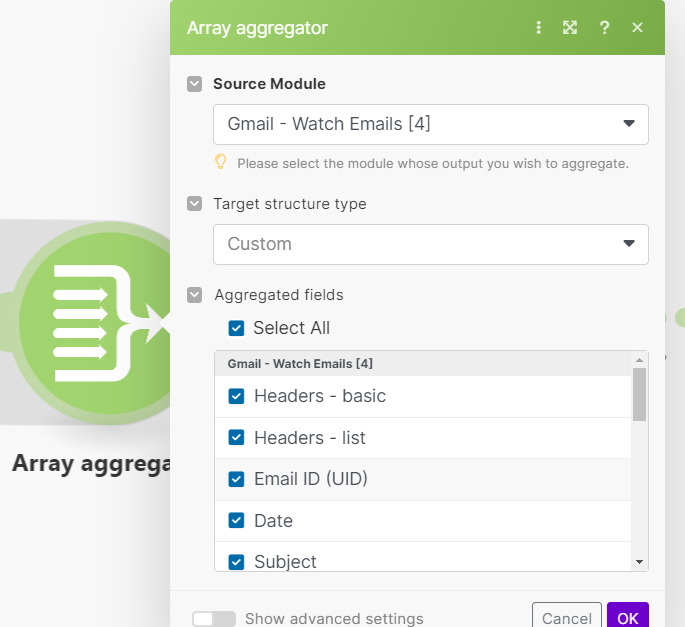
- Adding the Basic Aggregator: We use the
Basic Aggregatorhere because Gmail may return multiple emails which are all in their individual bundle. This module "aggregates" all the bundles into an array. - Using a Iterator for Array Conversion: Now that we have all the emails in an array we use the
Iteratormodule to loop over all the emails.
Splitting the Path with a Router
We want to perform two separate actions for each email: create a Trello card and log information in Google Sheets.
- Adding the Router: The router module enables us to create multiple paths for our scenario. It is not necessarily needed here but shows how they are used.
Creating Trello Cards
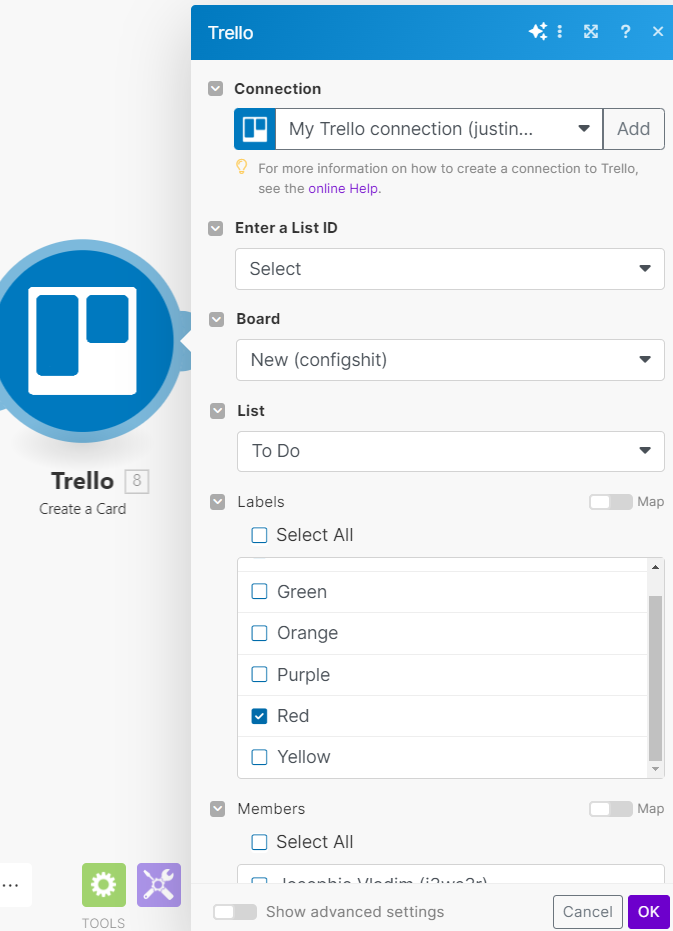
For the first route of the router, we will configure the Trello module:
- Adding the Trello Module: Select the
Create a Cardaction in Trello:- Connect your Trello account.
- Choose your desired
BoardandList. - Set the card's
NameasNew Project: {{subject}}. - Map the
Descriptionto{{text}}. - Optionally, you can assign
LabelsandMembersto the card.
Logging Email Details in Google Sheets
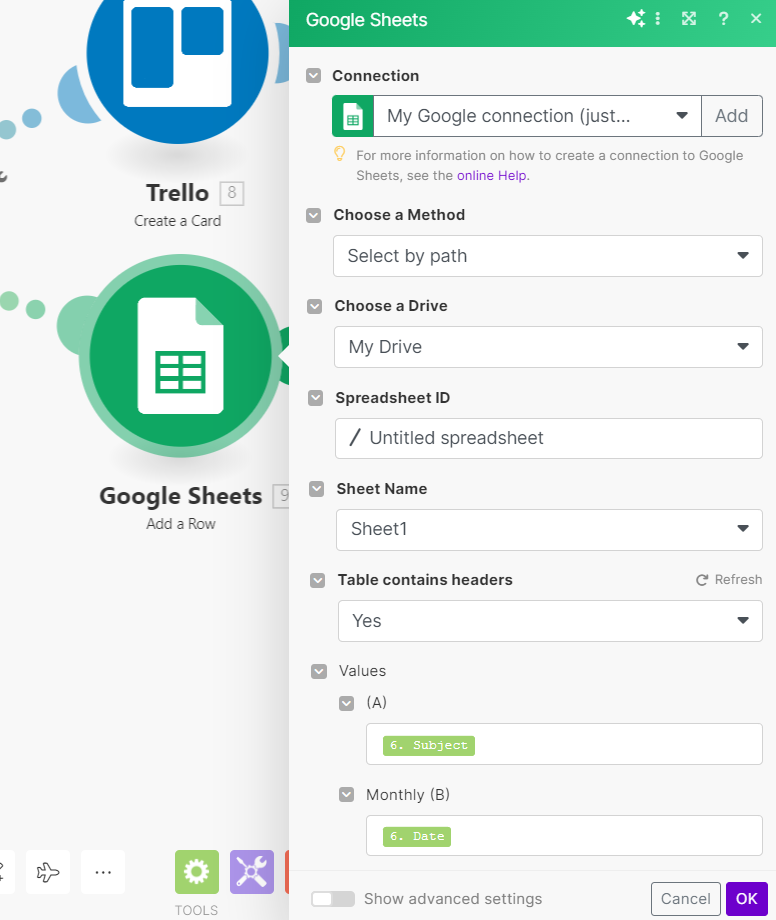
For the second route of the router, we will add an entry to Google Sheets:
- Adding the Google Sheets Module: Select the
Add a Rowaction:- Connect your Google account.
- Choose the
SpreadsheetandSheet Name. - Map the values such as
Subject,Date,From, andTextto their respective columns.
Finalizing and Activating the Scenario
- Review and Save: Double-check the configurations, ensuring all fields are mapped correctly and connections are valid.
- Testing the Scenario: Run the scenario once manually to ensure it behaves as expected. Validate by checking if the new Trello card and Google Sheets entry are created.
- Activating the Scenario: Turn the scenario on to start the automated 15-minute interval checks.
Conclusion
By following this walkthrough, we have set up a seamless integration between Gmail, Trello, and Google Sheets using Make.com. Now, whenever a "New Project" email lands in your inbox, it will automatically create a new Trello card and update your Google Sheets with the details, all without any manual intervention. This not only saves time but also ensures that your project management system is always up-to-date.
Embrace the power of automation to boost your productivity and streamline your workflows. If you have any questions or need further assistance, feel free to reach out!
For inquiries, you can contact us via email at email or visit our Upwork profile. We’re here to help you make the most of your automation journey.
Happy automating!


